How to Brief Client AI Agents From Codex via MCP
Connect Codex to Maxbound's MCP server and brief each client's AI agents in plain language, with every build held for approval in its own workspace.
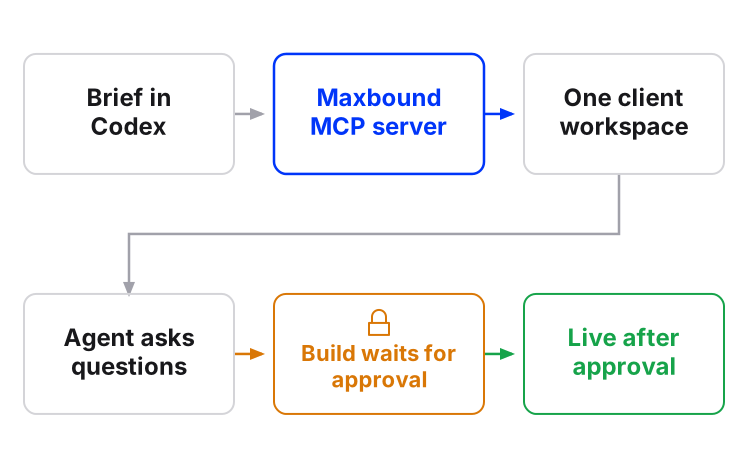
To brief a client’s AI agents from Codex, add Maxbound’s MCP server at app.maxbound.ai/api/mcp to Codex’s config.toml, check it loaded with codex mcp list, then describe the job in plain language and name the client workspace it belongs to. Maxbound’s agent asks what it needs to know, builds the agent, automation or schedule inside that one client’s workspace, and holds it until someone at the agency approves it.
That is the whole loop. Codex is where your account manager already works. Maxbound is where each client’s channels, knowledge, contacts and agents live, kept apart from every other client’s.
This guide is for the agency owner or ops lead who wants account managers briefing client work from Codex without anyone touching the wrong client or pushing something live by accident. You’ll leave with the config, a brief template you can copy, and a fix list for when the connection drops.
What does an MCP server for agencies actually do in Codex?
An MCP server for agencies gives Codex a door into the agency’s client work, and Maxbound’s MCP server opens that door one client workspace at a time. Codex is the MCP client. Maxbound is the server. Codex reads and acts on the workspace you point it at, through the same rules your team works under in the app.
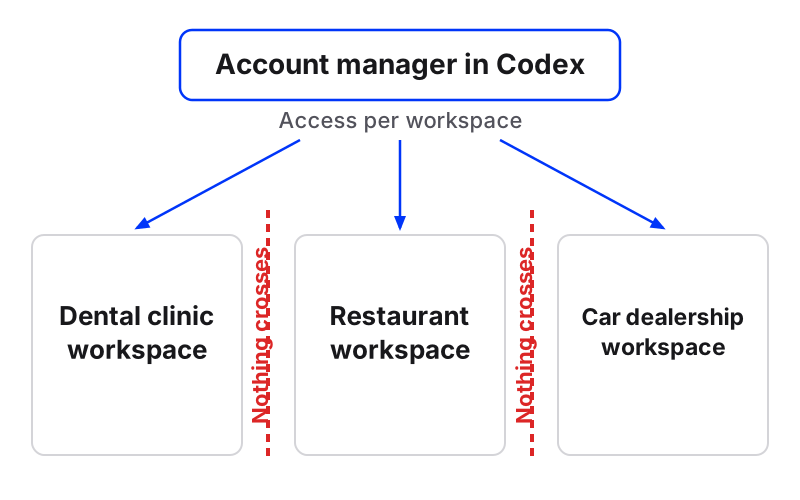
The important part for an agency is what does not change. Each client workspace keeps its own channels, knowledge, contacts, agents and posts, and nothing crosses between clients. A brief sent from Codex lands in one workspace and builds there.
The second thing that does not change is approval. Nothing a brief creates goes live until someone at the agency approves it, and approval can stay on for as long as you want.
How do I add the Maxbound MCP server to Codex?
Add Maxbound as a streamable HTTP server in Codex’s config file, then confirm Codex can see it. Codex keeps MCP configuration in config.toml, either globally in ~/.codex/config.toml or scoped to a single project.
For an agency, a global entry is usually right. Your account managers brief across clients, and the workspace is chosen in the brief, not in the config.
Open ~/.codex/config.toml and add:
[mcp_servers.maxbound]
url = "https://app.maxbound.ai/api/mcp"
Then check it from the terminal with codex mcp list. You should see maxbound in the list. Inside the Codex TUI, type /mcp to see the servers that are active in the current session.
Sign-in is the step people trip on. For streamable HTTP servers, Codex uses stored OAuth credentials by default, and it can also use the current ChatGPT session. If you’re working on a remote box or a terminal with no browser, codex mcp login --no-browser lets you finish sign-in elsewhere.
You’ll also see guides for adding a local stdio server with codex mcp add followed by the server command. That pattern is for servers that run on your own machine. Maxbound runs remotely, so the url entry above is all you need.
Connect Codex to Maxbound and brief a client
- Add the serverIn ~/.codex/config.toml add [mcp_servers.maxbound] with url = https://app.maxbound.ai/api/mcp.
- Confirm it loadedRun codex mcp list in the terminal, or /mcp inside the Codex TUI, and check maxbound appears.
- Sign inComplete the OAuth sign-in when Codex asks. On a terminal without a browser, use codex mcp login --no-browser.
- Brief one clientName the client workspace, the channel, the trigger, the outcome and who owns the lead, in plain language.
- Answer the questionsReply to the questions Maxbound's agent asks about channels, offers, timing and handover.
- Approve in MaxboundReview what was built in that client's workspace and approve it. Nothing goes live before this.
How do I brief an AI agent from Codex for one client?
Brief it the way you’d brief a new hire on their first morning: which client, what happens, what good looks like, and who to call when it gets hard. Account manager AI briefing works best when one brief covers one job for one client.
Copy this template and fill in the brackets:
In the [client name] workspace: when someone [trigger, e.g. comments “price” on the spring ad / messages on WhatsApp after 6pm], [action, e.g. DM them the price list / answer from the menu and opening hours]. Save anyone who [qualifying signal] to the CRM, tagged [tag], owner [teammate]. If they don’t reply, [follow-up rule]. Hand the conversation to a person when [handover rule].
Five things make a brief land first time:
-
The workspace name, every time. Say it in the first words. Never rely on what you briefed ten minutes ago.
-
One trigger, one outcome. “Answer comments and also schedule next week and also send a report” is three briefs.
-
A named owner. A lead with no owner sits in the CRM and nobody calls.
-
A handover rule. Agents hand a conversation to a person with its history, so tell it when: complaints, refunds, anything medical or legal.
-
A stop rule for follow-ups. “Once, the next day, then stop” beats “follow up”.
An illustration, not a client story. An account manager types into Codex: “In the dental clinic workspace, answer Instagram DMs and website chat after hours from the clinic’s FAQs and price list. Book check-ups in the chat during opening hours. Anyone asking about implants goes to Sara with the conversation.” Maxbound’s agent will come back with questions before it builds anything, such as which branch’s hours apply and what to say when a slot isn’t free.
The same brief works for a schedule. “In the restaurant workspace, schedule next week’s posts to Instagram and TikTok from the shoot folder, one a day at 7pm” builds a posting schedule, held for approval like everything else. If ChatGPT is your team’s tool rather than Codex, the same idea is covered in our guide to scheduling client posts from ChatGPT.
What happens after the brief is sent?
Maxbound’s agent asks, builds, then waits. The questions come first because a brief always leaves gaps, and a gap filled by guessing is how an agent quotes last year’s prices.
Once your answers are in, the agent builds the agent, automation or schedule inside that client’s workspace and marks it as waiting for approval. Someone at the agency opens it, reads it and approves it. Until then, no customer sees anything.
Before approving a new agent, rehearse it. Simulations run the agent on the client’s real past conversations so you see how it would have answered, before it answers anyone.
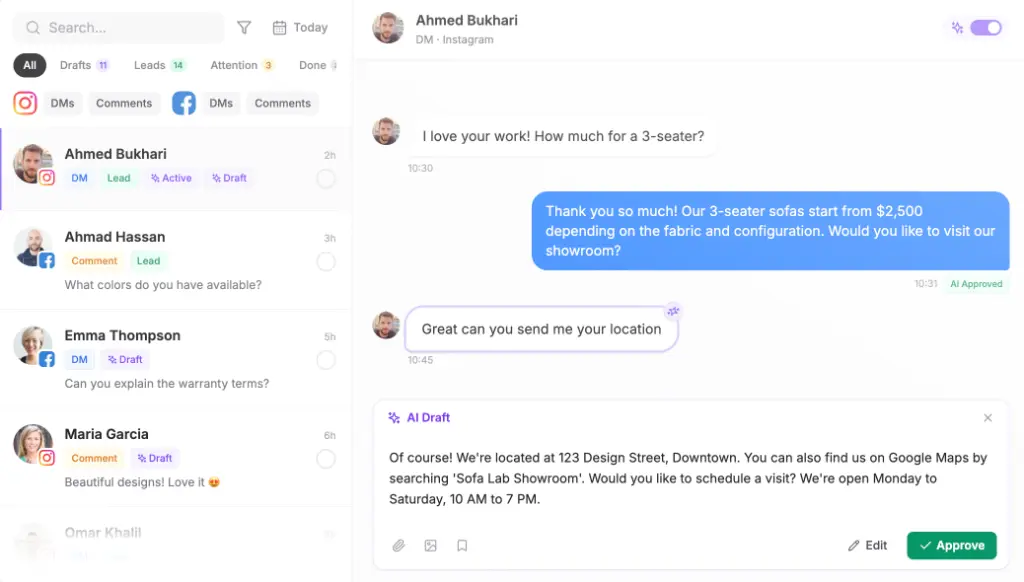
For clients where every word matters, keep drafts on after launch. An agent can draft each reply for a person to approve or edit before it is sent, and the agent learns the brand’s tone of voice from those edits.
How do I keep each MCP client workspace separate when one person briefs them all?
Keep the separation in the platform, not in people’s heads. In Maxbound, each client is its own workspace, and each teammate is given access only to the client workspaces they work on, with role-based permissions inside each one.
That matters with Codex because an account manager can run a dozen briefs in an afternoon. If the boundary depended on them remembering which chat thread belonged to which client, sooner or later a dental clinic’s FAQ would end up in a car dealership’s agent. With one workspace per client, a brief can only build inside a workspace the person can access, and nothing crosses between clients.
When a setup works for one client, don’t brief it again from scratch for the next. A workspace that works can be cloned as the starting point for the next client, then you brief only the differences: new knowledge, new owner, new offer. The new client authorises their own Instagram, Facebook and WhatsApp accounts through a one-time Magic Link, so no social password passes through the agency.
Agencies running many accounts this way are who Maxbound is built for, whether you’re a marketing agency running every client from one place or a performance shop answering ad replies.
What goes wrong, and how do I fix it?
Most failures are config, sign-in or a vague brief. This table covers the ones agencies hit.
| Problem | Likely cause | Fix |
|---|---|---|
maxbound missing from codex mcp list | Entry in the wrong config.toml, or a typo in the table name | Check ~/.codex/config.toml, or the project-scoped file if you used one |
| Server listed but tools fail | Sign-in not finished or credentials expired | Sign in again; on a headless terminal use codex mcp login --no-browser |
| Build landed in the wrong client | Workspace not named in the brief | Name the workspace in the first words of every brief; reject the build |
| Endless questions back | Brief covers several jobs | Split into one brief per trigger and outcome |
| Agent answers badly in testing | Thin knowledge for that client | Add the website, files, FAQs and past chats, then rerun Simulations |
One more source of confusion: searching “codex mcp” also turns up a different product. A data API also called Codex publishes a documentation MCP server that searches its API docs and does not call its own API. It has nothing to do with OpenAI’s Codex or with briefing client agents, so skip it.
When should you not brief client agents from Codex?
Don’t brief a live customer-facing agent for a brand-new client before its knowledge is in. I wouldn’t try this on new clients until the website, price list and FAQs are loaded and a Simulation has run. The brief is only as good as what the agent can answer from.
Don’t use Codex if the person briefing has no stake in the client. The questions Maxbound’s agent asks need someone who knows the offer, the hours and who owns the leads.
And know the edges. Maxbound agents work on WhatsApp, Instagram DMs, comments and story replies, Facebook Messenger and comments, website chat and chat inside a client’s own iOS or Android app. There is no voice, SMS or Slack agent, and posts go to Instagram, Facebook, TikTok and YouTube only.
If that fits how your agency works, Maxbound is priced per workspace with AI credits included; see pricing and start with the 7-day trial on one client. Connect Codex, send one brief, approve it, and see whether your account managers ever want to go back.