How to Schedule Client Posts from ChatGPT via MCP
Connect ChatGPT to Maxbound's MCP server, brief a client's posts for Instagram, Facebook, TikTok and YouTube, and approve them before anything goes live.
Yes. Your agency can connect ChatGPT to Maxbound’s MCP server and schedule client posts to Instagram, Facebook, TikTok and YouTube from a chat.
You add Maxbound as a custom connector in ChatGPT on the web, using the server address app.maxbound.ai/api/mcp. Then you brief the week’s posts in plain language and name the client. Maxbound asks what it needs, builds the schedule inside that client’s own workspace, and nothing publishes until someone at the agency approves it.
This guide walks the whole process in order. Plan check, client accounts, the connector, the brief, the approval, and the mistakes that cost agencies a client’s trust.
What is an MCP server, and where does ChatGPT fit?
The Model Context Protocol (MCP) is an open standard that lets an AI assistant use outside tools through natural language. Anthropic introduced it in November 2024, and ChatGPT, Claude and Codex can all now act as MCP hosts.
There are three parts to keep straight.
-
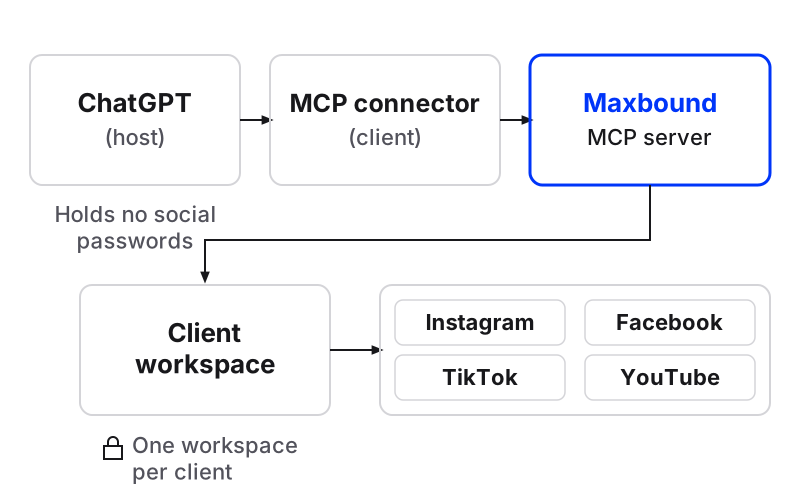
The host is the app you type into. Here, ChatGPT.
-
The client is the connector inside ChatGPT that speaks MCP on your behalf.
-
The server is the tool doing the real work. Here, Maxbound, which holds each client’s channels, calendar and approvals.
The split matters for an agency. ChatGPT never holds your clients’ Instagram or TikTok logins. It only sends requests to Maxbound, and Maxbound decides what each request can touch.
Which ChatGPT plans can connect a custom MCP server?
OpenAI’s help centre says custom MCP server connections and full MCP support are available for ChatGPT Business and Enterprise/Edu customers on ChatGPT web. Check your plan before you promise a team member this workflow.
Two details trip people up.
-
Web only. Custom MCP servers can’t be connected from the ChatGPT mobile app. Set this up on a laptop.
-
Developer Mode. Older guides tell you to switch on Developer Mode first. OpenAI’s current help article says you don’t need to in the current Plugins experience. If your workspace still shows the toggle, follow what your screen shows.
If your team lives in Claude or Codex instead, the same Maxbound server works there. The brief and the approval step don’t change.
How does an agency connect ChatGPT to schedule posts for clients?
An agency connects ChatGPT to its clients’ publishing by adding Maxbound’s MCP server as one connector, then naming the client workspace in every brief. Here is the full order.
Schedule client posts from ChatGPT with Maxbound's MCP server
- Connect the client's accounts in their workspaceSend the client a one-time Magic Link from their Maxbound workspace so they authorise their own Instagram, Facebook, TikTok and YouTube accounts. No password passes through the agency.
- Give account managers the right workspacesIn Maxbound, give each teammate access only to the client workspaces they work on, using role-based permissions.
- Add Maxbound as a custom connector in ChatGPT webIn ChatGPT on the web, add a custom MCP server and paste app.maxbound.ai/api/mcp, then complete the sign-in ChatGPT asks for with your Maxbound account.
- Turn on the actions you needReview the actions the connector exposes and switch on the ones for drafting and scheduling posts. New actions added later arrive switched off.
- Brief the week in plain languageName the client workspace, the networks, the dates and times, and what each post is about.
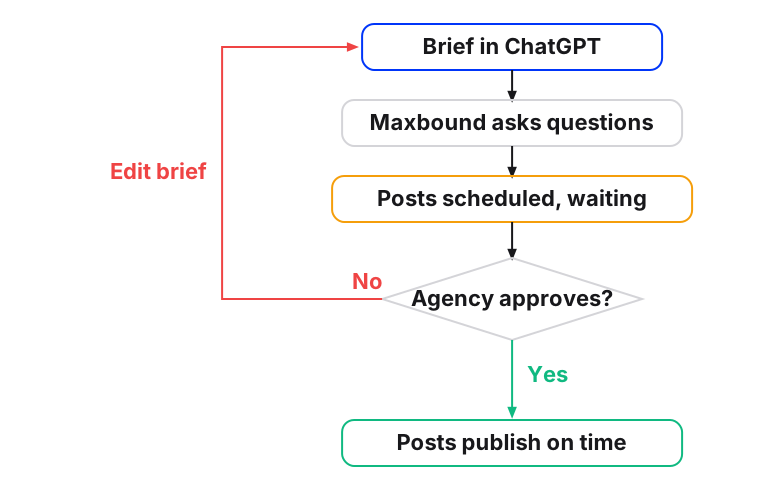
- Answer the follow-up questionsMaxbound asks what it still needs, such as which video goes to YouTube or what time zone to post in.
- Approve in MaxboundOpen the client's workspace, check the scheduled posts on the calendar and approve them. Nothing publishes before that.
Step 1: Connect each client’s accounts first
Do this before you touch ChatGPT. A connector with no connected accounts behind it has nothing to schedule to.
Each client gets its own Maxbound workspace with its own channels, knowledge, contacts, agents and posts. Nothing crosses between clients. The client authorises their own accounts through a one-time Magic Link, and Maxbound connects only through each platform’s official APIs and OAuth login. Maxbound never asks for, sees or stores a social password.
That’s the part account managers love. No more chasing a client for their TikTok password on WhatsApp.
Step 2: Set permissions before anyone opens a chat
Role-based permissions are your multi-client safety net. Give each teammate access to the client workspaces they actually run, and nothing else.
Why now? Because once ChatGPT is connected, typing a brief is easy. Easy is good. Easy plus the wrong workspace is how a dental clinic’s offer ends up queued for a car dealership.
Step 3: Add the connector
In ChatGPT on the web, add a custom MCP server and paste the Maxbound address: app.maxbound.ai/api/mcp. The pattern matches how most schedulers work through MCP: you add one connector URL and approve OAuth, and no API key gets pasted into a chat.
The menu names in ChatGPT move around between releases. If you can’t find the option, OpenAI’s help article above has the current path.
Step 4: Switch on only what you need
When Maxbound adds a new action to its MCP server later, ChatGPT keeps it switched off until you turn it on. Treat that as a feature.
For post scheduling, you need the actions that read the workspace and create scheduled posts. Leave anything else off until you have a reason to use it.
Step 5: Write the brief
Brief Maxbound the way you’d brief a new hire. One client per message. Name the workspace in the first line, every time.
Copy this template:
Workspace: [Client name]. Schedule next week’s posts. Instagram and Facebook: three posts, Monday, Wednesday and Friday at 6pm [time zone], about [topic or offer]. TikTok: the [video name] clip on Tuesday at 7pm. YouTube: the full [video name] on Thursday at 5pm with a title and description. Use the brand’s usual tone. Draft the captions and show me before scheduling.
The last sentence matters. You want the captions in front of you before anything lands on the calendar.
Step 6: Answer the questions it asks
Maxbound asks what it needs to know before it builds anything. Which clip goes to YouTube. Whether the Facebook caption should match Instagram. What time zone the client’s audience is in.
Answer in the same chat. Short answers are fine. If you don’t know, say so and ask it to leave that post out rather than guess.
Step 7: Approve in the client’s workspace
The scheduled posts sit in that client’s workspace, waiting. Nothing goes live until someone at the agency approves it, and approval can stay on for as long as you want.
Open the client’s post calendar, check the dates against the client’s own campaign plan, then approve. Once approved, the schedule lives in Maxbound, not in your chat. You can close ChatGPT and the posts still go out.
What can go wrong with ChatGPT MCP scheduling?
Most failures come from speed, not software. The workflow is fast, so people skip the checks.
| Mistake | What happens | Fix |
|---|---|---|
| No workspace named in the brief | Posts drafted for the wrong client | Start every brief with “Workspace: [client]“ |
| Several clients in one chat | Context from one client leaks into the next brief | One chat per client, per week |
| Approval switched off in week one | A wrong date or caption publishes | Keep approval on until the brief format is settled |
| Setting up on a phone | The connector option isn’t there | Use ChatGPT web on a laptop |
| Asking for LinkedIn or X posts | Nothing is scheduled there | Maxbound publishes to Instagram, Facebook, TikTok and YouTube only |
| Untrusted content in the same chat | Hidden instructions can steer the assistant | Keep write actions away from untrusted inputs |
Prompt injection is the real risk
An assistant with write access will act on text it reads, including text someone else wrote. One documented case showed that an attacker only needs your email address to send a calendar invite carrying a jailbreak prompt, which an MCP-connected assistant then reads.
For an agency, the defence is layered:
-
ChatGPT confirms write actions such as publishing before it runs them. Read the confirmation, don’t just click it.
-
Maxbound’s approval gate means a scheduled post still waits for a person in the workspace.
-
Separate chats. Don’t paste a client’s inbound emails or third-party documents into the same chat where you brief posts.
Can account managers brief clients from ChatGPT, Claude or Codex?
Yes. Account managers connect the same Maxbound MCP server at app.maxbound.ai/api/mcp to ChatGPT, Claude, Codex, Cursor or any MCP client, then brief the client workspace from there.
The brief isn’t limited to posts. From the same chat, an account manager can ask Maxbound to build an agent that answers a client’s comments and DMs, an automation, or a schedule, such as a client’s monthly report emailed every Monday. Each one waits for approval before it runs.
When a client’s setup works, the workspace can be cloned as the starting point for the next client. The new client then connects their own accounts through their own Magic Link.
Why schedule posts in the workspace that answers the replies?
A post is only half the job. The comments and DMs it creates land in the same client workspace that scheduled it.
That’s the reason to brief scheduling through Maxbound rather than a standalone scheduler. The client’s agents answer the replies from the client’s own sources, comment-to-DM turns commenters into saved CRM contacts, and comment moderation hides spam and rival pitches. All of it sits in one inbox per client, with the agent handing a conversation to a person, with its history, when it should.
When should you not schedule from ChatGPT?
Skip the chat for a single post you’re already looking at. Opening the client’s calendar in Maxbound is faster.
Skip it when your ChatGPT plan doesn’t support custom MCP servers. Brief inside Maxbound instead; it’s the same brief and the same approval.
And skip it for networks Maxbound doesn’t publish to. Maxbound schedules to Instagram, Facebook, TikTok and YouTube only, not LinkedIn, X, Threads or Pinterest.
What does it cost?
Maxbound is priced per workspace, so one client is one workspace, with every feature in each. Each workspace includes 100 AI credits a month, and the price per workspace falls as an agency adds more. See the per-workspace pricing for the brackets.
Every account starts with a 7-day free trial. There’s no free plan.
Your next step
Pick one client. Connect their accounts by Magic Link, add the connector in ChatGPT web, and brief next week’s posts with the template above. Keep approval on.
If you run publishing for many clients, the Maxbound MCP server is built for exactly that: one connector, every client in its own workspace, nothing live until your team says yes. More on how this fits marketing agencies running every client from one place.