Connect Claude to Client Inboxes: Read, Draft, Send
Connecting Claude or ChatGPT to client inboxes comes down to three permissions: read, draft and send. Granting each one safely is the whole job.
Connecting Claude to a client’s inbox is the quick part. Deciding what it’s allowed to do there is the real work, and it’s the part most guides skip: which client it can see, who signs off before anything is sent, what a busy week of comments costs, and how you’ll know replies actually got faster.
This guide is for agency owners and account managers who run WhatsApp, Instagram, Facebook, website or in-app chat for several clients. By the end you’ll have one client connected to Claude, approval switched on, four prompts saved for triage, summaries, drafts and the content calendar, and a simple way to measure whether it helped before you roll it out to anyone else.
What does it take to connect Claude to a client inbox?
Claude reaches outside tools through the Model Context Protocol, the open standard Anthropic released in November 2024. A server tells Claude which tools it offers, and Claude calls them when a task needs one. Every Claude.ai plan can connect MCP servers to the desktop app, so this works on whatever plan your team already pays for.
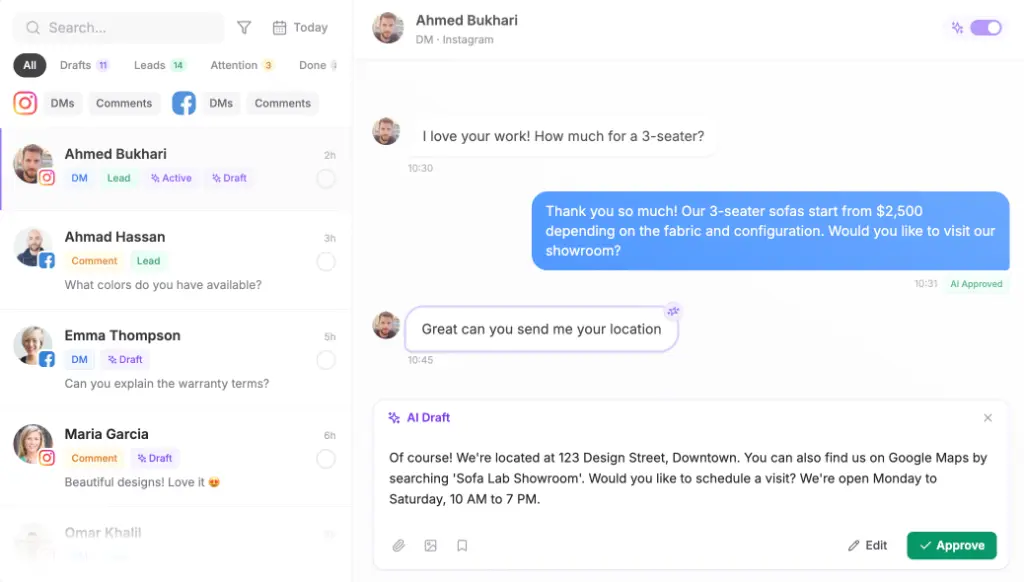
In an agency, the server should be one client’s workspace and nothing more. Maxbound gives each client its own workspace, with its own channels, knowledge, contacts, agents and posts, and its MCP server at https://app.maxbound.ai/api/mcp lets Claude, ChatGPT, Codex or Cursor read and act on that workspace. Nothing goes live until someone at the agency approves it, and you can keep approval on for as long as you like.
The real decision is how much you let the model do. Most teams move through three levels, and it pays to sit at each one for a while.
| Level | What the model can do | Setting that keeps it honest | What goes wrong |
|---|---|---|---|
| Read | Search conversations, summarise a week, list unanswered DMs | Approval on, no write tools in the prompt | Thin knowledge makes summaries miss context |
| Draft | Write a reply for a person to approve or edit | Drafts a person approves; no send | A good-sounding draft quotes the wrong price |
| Act | Send replies, publish scheduled posts, update the CRM | Escalation rules, one approver per client, reply delay | A fast answer to a refund request reaches the customer first |
Step by step: connect one client workspace
- Pick one client in Maxbound. Start with a single workspace, not your whole client list.
- Copy the MCP server URL: https://app.maxbound.ai/api/mcp.
- In Claude on the web or the desktop app, open Settings → Connectors → Add custom connector and paste the URL. Name it after the client, for example
Maxbound - Acme, so you always know whose data a chat can reach. - Open a new chat and check that the connector is listed and its tools appear.
- If your team works in Claude Code instead, add the server from the terminal with
claude mcp add --transport http maxbound-acme https://app.maxbound.ai/api/mcp. Runclaude mcp listto confirm it connected, or/mcpinside a session. Claude Code’s MCP commands also cover--scope user, which adds a server to every project, andclaude mcp remove maxbound-acmefor when a client leaves. - Turn approval on in Maxbound and leave it on for the first month.
- Run the triage prompt below. Ask for a list, not a send, and check the result against the inbox yourself.
- Turn on drafts for this one client. The agent writes a reply, and a person approves or edits it before it goes out.
- Track tokens and reply times for a week, then decide whether the next client gets the same setup.
Most agencies won’t need to build a server of their own, since the workspace already has one. If you do, check the requirements before you start: the MCP guide to building a server asks for Python 3.10 or later, or Node.js 20 for TypeScript. It also warns that a server talking to Claude over standard input and output must never print to standard output, because anything written there corrupts the messages Claude reads. For a server that lives on the web rather than on your laptop, use HTTP. Claude Code treats the older SSE transport as deprecated wherever HTTP is available.
The prompts to copy for triage, summaries and drafts
These assume one client workspace, and each one tells the model to stop before anything is sent. Save them in the client workspace or in a Claude project so the whole team uses the same wording.
Prompt 1, daily triage:
You are working inside the Maxbound workspace for [client]. Do not send anything. List every conversation from the last 24 hours that has no team reply. For each, give: channel, customer name, first message in one line, last message in one line, whether a lead is saved in the CRM, and the next action. Sort by oldest first. If a conversation contains a refund, legal threat, medical claim or price negotiation, put it at the top and mark it HUMAN.Prompt 2, thread summary:
Summarise this thread in five lines. Line 1: what the customer wants. Line 2: what we promised, with the exact date or price only if it appears in the thread. Line 3: what is still missing. Line 4: the next action and who owns it. Line 5: any claim in the thread that you cannot verify from the thread or the client knowledge base. Do not add facts from outside those two sources.Prompt 3, draft with an unsupported-claim check:
Draft a reply to this thread in the client tone of voice. Use only facts in the thread and the client knowledge base. If the reply needs a price, a refund, a legal commitment or a medical claim, stop and ask me. Leave the reply as a draft for approval. Do not send. After the draft, list every sentence that asserts a fact not present in the thread or the knowledge base.Prompt 4, social calendar audit:
List the scheduled posts for [client] for the next 7 days. For each, give the network, the planned time, the first line of the caption, and whether a human owner is named. Flag any post that mentions a price or a date and has no owner. Do not change anything.The last line of prompt 3 is the one that saves you. A draft can sound right and still promise a discount nobody agreed to, so the model has to point at the thread or the knowledge base for every fact, and anything it can’t point to stays out. Run the calendar prompt before each monthly review.
Who approves access in a small agency?
If you also connect Gmail, Drive or Calendar to Claude, approval starts with whoever owns the Claude account. On Team and Enterprise plans, an Owner or Primary Owner has to switch on Claude’s Google Workspace connectors for the whole organisation before anyone can sign in to them. If people see access blocked, a Google Workspace admin has to allow Claude as a trusted app. After that, Claude asks for explicit approval before each action it takes for you, such as sending an email.
In a small agency, that settles into a simple split. One owner switches connectors on, one account manager per client approves that client’s drafts, and everyone else can read but not act. Maxbound keeps the same split inside each workspace through role-based permissions, so the person who approves Acme’s replies doesn’t automatically approve anyone else’s.
What does a week of comments cost in tokens?
More than you’d think if you paste everything into a chat. Anthropic’s engineers showed how much this matters when they had a model run code against MCP servers instead of loading every tool definition and result into the conversation: one task fell from 150,000 tokens to 2,000, a 98.7% saving. Your bill won’t follow that number, but the lesson carries over to an inbox.
Don’t hand the model a week of comments. Ask for a filtered list first, then a summary of one thread, then a draft for that thread. Narrow requests cost less, and they give the model less room to invent things.
Privacy and compliance for client social data
Maxbound is an approved Meta Tech Provider and connects through each platform’s official APIs and OAuth, so it never asks for, sees or stores a social password. Traffic is encrypted in transit with TLS, which is not end-to-end encryption, and the platform is GDPR compliant. Each client sits in its own workspace, and agents can be set to wait for a person’s approval before any reply goes out.
On Claude’s side, Anthropic says it doesn’t train its models on data from the Gmail, Drive and Calendar connectors. That promise covers those connectors, not every MCP server you add, so before you connect a client’s social inbox, read Anthropic’s terms for your plan and the data processing agreement of the server you’re connecting.
What happens to screenshots and voice notes?
Claude reads only the text of a Google Drive file and skips any images embedded in it, and you shouldn’t assume any text-based connector can see pictures. Customers send plenty of them: a screenshot of a bank transfer, a photo of a damaged parcel, a meme that is really a complaint.
Give those to a person. Text questions can go to the agent, while images, voice notes and anything that needs a judgement about a picture go to a human. The agent can still send a holding reply and log the lead so nothing waits unseen.
How do you measure whether replies got faster?
Nobody can hand you a fair benchmark for this, because it depends on your clients, your channels and your hours. The honest version is a baseline you take yourself:
- Pick one client and one channel.
- For two weeks, export the time of each customer message and the time of the first reply, whether a person wrote it or approved an agent’s draft.
- Work out the minutes between the two in a spreadsheet.
- Split that into time to draft and time to approve. Approval settings only change the second number.
- Keep human-only replies and agent-drafted replies in separate columns.
- Run the same export four weeks later for the same channel and the same hours, and compare.
If drafts are ready in seconds but approval still takes hours, the wait is the approver, not the AI. Look at who approves and when they check.
One workspace per client
The workspace is the wall between clients. Each one has its own channels, knowledge, contacts, agents and posts, and nothing crosses from one to another. Once a setup works for one client, you can clone that workspace as the starting point for the next.
Don’t connect one chat to all your clients and trust the prompts to keep them apart. Connect the workspace for the client you’re working on and name the connector after them. If you add the server with --scope user in Claude Code, it shows up in every project, which is handy, but it also means it’s there when you’re thinking about a different client. The data stays separated in the workspace; your naming and habits have to keep the conversations separate too.
The same workspace holds the client’s content calendar. Maxbound schedules posts to Instagram, Facebook, TikTok and YouTube from it, and the MCP server can read that schedule, so the calendar prompt checks exactly what your team sees.
Common mistakes
- Connecting every client at once. Start with one workspace and one channel.
- Switching approval off while edits are still teaching you something.
- Pasting a full week of comments into the chat instead of running the triage prompt.
- Assuming the model can see images.
- Forgetting the owner step for Google Workspace connectors on Team or Enterprise plans.
- Building a server that prints to standard output, or using SSE for a remote server when HTTP is available.
- Letting a draft state a price that isn’t in the thread. The check in prompt 3 is there for that.
When not to do this
Hold off if the client’s conversations happen by phone, SMS or Slack, or if you need to publish to LinkedIn, X, Threads or Pinterest, since Maxbound covers none of those. Hold off, too, if nobody can approve drafts for the first few weeks; an agent without a reviewer is the setup that sends the wrong price. And if a client’s inbox is mostly images, a text-based connector won’t cover it, however good the prompts are.
Who this suits
Maxbound suits agencies whose bottleneck is reply volume on clients’ WhatsApp, Instagram, Facebook, website or app chat, and who want each client in its own workspace with agents, CRM, scheduling and approval in one place. It doesn’t suit teams that need voice, SMS, Slack or LinkedIn publishing, or that want a free plan.
Claude on its own, with the Google Workspace connectors, suits a team that mainly wants help with email and documents. To reach a client’s social inbox with real tools, it needs an MCP server behind it.
A one-client checklist for today
- One client workspace chosen.
- MCP URL copied: https://app.maxbound.ai/api/mcp
- Connector added in Claude or Claude Code, named after the client.
-
claude mcp listor/mcpconfirms the server. - Approval on in Maxbound and in Claude.
- Triage prompt saved and run.
- Thread summary prompt run on one thread.
- Draft prompt saved with its stop conditions.
- Calendar prompt saved for the next review.
- Token use checked after one week.
- Every edited draft from the first week reviewed, and each correction added to the client’s knowledge.
Do one client, copy the prompts and measure the week. When it works, clone the workspace and do the next one.