How to Set Up Human-in-the-Loop AI for Social Replies
Human-in-the-loop AI drafts each comment and DM reply, and a person approves it before it sends. How to set it up per client, review fast, and know when to let
Human-in-the-loop AI, for social media replies, means the AI writes the answer and a person decides whether it goes out. A comment or DM arrives, an agent drafts a reply in the brand’s voice, and the draft waits. Someone on your team approves it, edits it, or takes the conversation over. Nothing reaches the customer without a person behind it.
For an agency, this is how you put AI on a client’s account in week one without betting the relationship on it. Writing becomes editing, the agent learns from every edit, and you hand it more of the inbox only when the numbers say it’s ready.
This post covers how to set it up for one client, how to review drafts quickly without the queue turning into a second backlog, and how to decide when a client’s agent can send on its own.
What “human-in-the-loop” actually means
The term comes from machine learning, where it describes systems that ask a person for input exactly where the model is least sure. IBM’s explainer puts it as a model that “identifies uncertain or low-confidence predictions and requests human input only where needed.” Regulators use the same idea: Article 14 of the EU AI Act requires high-risk AI systems to be designed so they “can be effectively overseen by natural persons” while in use.
For replies on Instagram, Facebook and WhatsApp, the practical version is simpler. There are three ways to run a client’s inbox, and human-in-the-loop is the middle one.
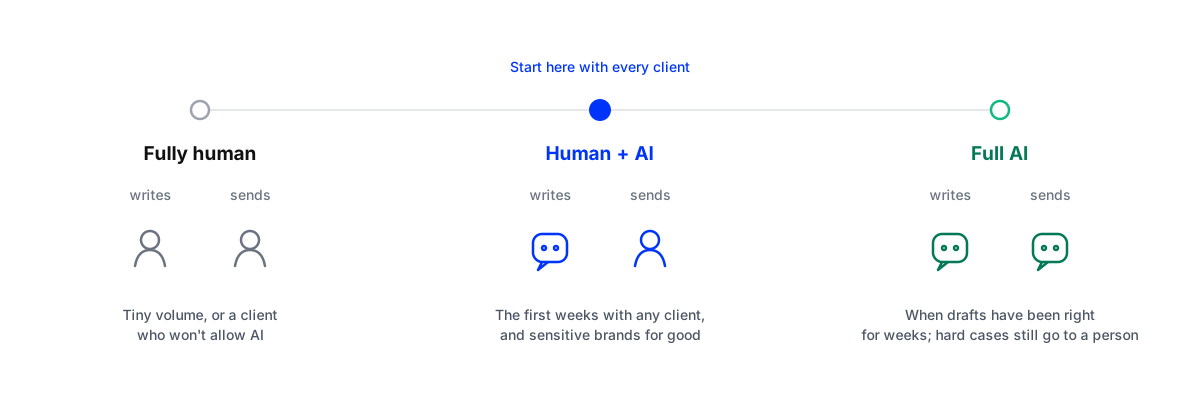
Maxbound’s analytics reports exactly this split per workspace: how many conversations ran in full AI mode, how many as human plus AI (an AI draft a person approved) and how many were handled fully by hand.
Why this is the mode agencies should start in
AI-written content still needs people. In Knak’s State of Marketing Production 2026 report, most teams had deployed AI in production, and most still needed real editing on what it produced.
Replies on a client’s account raise the stakes, because many of them are public. A wrong price under a post, a joke at the wrong moment, or a confident answer to a question the agent shouldn’t touch is read by everyone scrolling that post, and screenshotted by some of them.
The two alternatives both fail in predictable places. Sending everything automatically fails at the edges: the angry customer, the big lead, the comment that becomes a story. Doing everything by hand fails on volume and at night. In our study of 1,788 public comments on 178 businesses’ Instagram and Facebook posts, pages answered 15% of comments, and more than half of the unanswered ones arrived outside office hours. A draft queue keeps the judgment with people and takes the typing away from them.
How the loop works
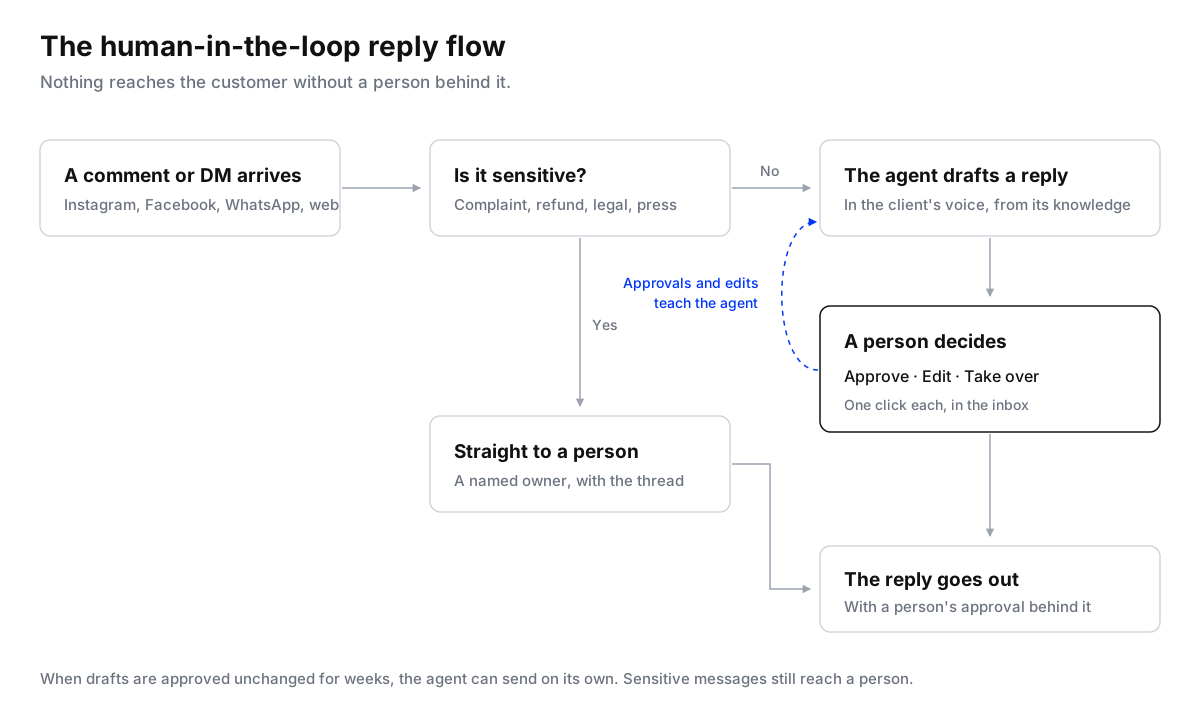
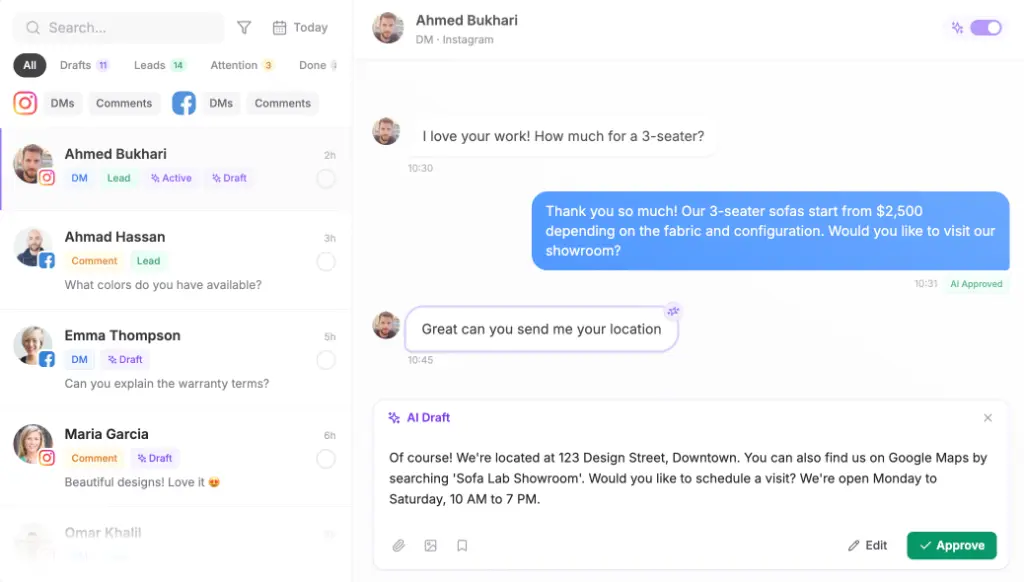
Every message goes one of two ways. Routine questions get a draft. Sensitive ones, such as complaints, refund demands or anything legal, skip the draft and go straight to a person, because a wrong sentence there costs more than a slow one.
A reviewer then makes one of three decisions:
- Approve when the draft is right as written. This is the fastest path and the one you want most drafts to take.
- Edit when the idea is right and the wording isn’t. Change the few words that are wrong instead of rewriting the whole reply, because a precise correction teaches the agent more than a replacement does.
- Take over when the conversation needs a person. Answer it yourself, and hand it back when you’re done.
How to set it up for one client
Start with one client: the one whose inbox hurts most. Then follow these steps in order. The order matters more than the speed.
Set up human-in-the-loop AI replies for a client
- Let the client connect their own accountsSend the client a one-time Magic Link from their workspace. They sign in to Instagram, Facebook or WhatsApp on each platform's own page and authorise access, so their passwords never pass through your agency.
- Train the agent before it writes anythingAdd the client's website, price list, policies and FAQs, and connect their past conversations. The website tells the agent what they sell; the old conversations tell it how the client talks.
- Write the four voice rules downDecide how long replies are, whether the brand uses emoji, whether prices are ever posted in public comments, and how a complaint is first answered. Reviewers check drafts against these four rules.
- Set escalation before you switch drafting onList what should never be drafted: complaints, refunds, legal or medical questions, press. Those go straight to a named person.
- Turn on Human + AI modeSwitch the agent so replies wait as drafts. Set a short reply delay, so a customer who sends three quick messages gets one answer covering all of them.
- Rehearse on last week's messagesReplay real past conversations through the agent without sending anything, and fix what it gets wrong before a customer sees a draft.
If you want the testing step in more depth, see how to test an AI agent before it goes live.
Reviewing drafts without building a second backlog
A queue only helps if somebody owns it. The rules that keep it moving:
- One owner per client, with a named backup. A queue that belongs to everybody is opened by nobody.
- Work it by intent, not arrival time. Buying questions and complaints first, compliments last. Sorted by arrival, the best lead of the day waits behind forty heart emojis.
- Two or three short passes a day beat leaving it open. A reviewer switching between the queue and other work edits worse than one clearing it in one sitting.
- One approver per message. Two people editing the same brand in different directions on the same day undo each other’s training.
- Edit only what changes the meaning or breaks a voice rule. “I’d have said it differently” is not a reason to edit.
There is also a hard deadline on DMs. Instagram gives a business 24 hours to reply to a message. Meta allows a reply up to seven days later only when a person sends it as a human agent message. A queue left unattended over a weekend is not just slow, it runs into the platform’s rules.
How the agent learns from your edits
Every approval tells the agent it got that one right, and every edit is saved as a correction. In Maxbound, the knowledge base shows each one as “learned from approval” or “learned from edit”, next to the question it answered.
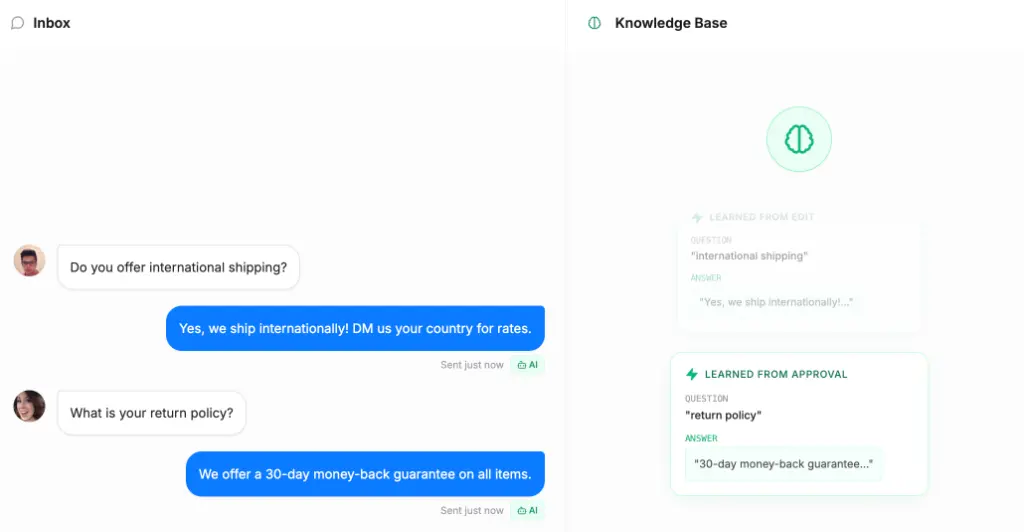
This is why the first two weeks are the expensive part. The corrections are concentrated at the start, and the same mistake shouldn’t come back once it’s been corrected. If your team keeps fixing the same thing, the knowledge behind it is missing or contradicts itself; fix the source, not the draft. More on how this works in self-improving AI that learns your brand.
When to let the agent send on its own
Decide on numbers, not on a quiet week. Track three things per client:
- Approved unchanged. The share of drafts approved without any edit. Count the approvals and edits the knowledge base records.
- Time to approval. How long a draft waits for a person. If this creeps past a few hours, the queue is costing you more than it saves.
- Handed to a person. How often a conversation leaves the drafts for someone to take over.
Pick a bar before you start, for example nine out of ten drafts approved unchanged over two full weeks that include at least one busy day. When a client clears it, switch that agent to full AI mode and keep escalation on. Full AI mode isn’t unsupervised: sensitive conversations still reach a person, and a teammate can step into any thread.
Some clients should never leave Human + AI mode: healthcare, finance, anything regulated, or a founder who wants to see every word. That’s a fine outcome. You still save the typing.
Where the timing settings fit
Two settings make drafts read like a person wrote them. Reply delay makes the agent wait a few seconds so a burst of messages gets one answer, and Avoid Double Reply pauses the agent when a teammate replies, so the customer never gets two answers. For the rules on what to hand to a person, see smart escalations.
Where Maxbound fits
Maxbound is an AI operating system for agencies. Its AI agents answer comments and DMs on Instagram and Facebook, WhatsApp, website chat and in-app chat, in Human + AI or full AI mode, and every draft, takeover and reply sits in one omnichannel inbox with the client’s CRM record next to it. Each client is its own workspace, with its own agent, its own knowledge and its own reviewer. If you run inbound for clients, the marketing agencies page shows how the pieces fit together.