How to Send Instagram DM Leads to a CRM with Webhooks
A step-by-step playbook for agencies: capture Instagram DM and comment leads, push them to each client's CRM by webhook, and stay inside Meta's windows, rate
If you run Instagram for several clients, you already know where the leads go missing: a comment nobody answered, a DM that sat overnight, a phone number that never made it into the client’s CRM. To fix it, capture the lead inside the conversation first, then fire a webhook when the lead is saved, not every time a message arrives. That one choice decides whether your client’s sales team gets clean contacts or a pile of half-finished chats.
In Maxbound, each client gets its own workspace with its own channels, contacts and agents. The agent answers the client’s Instagram, WhatsApp and Facebook conversations, saves every lead into that workspace’s built-in CRM, and a webhook tells your own systems the moment the lead is saved. Every delivery is logged and can be re-sent, so a failed push doesn’t turn into a lost lead.
This playbook is for agency owners and account managers. By the end you’ll have a working comment-to-DM-to-CRM setup for one client, a field map and a launch checklist to copy, and a clear picture of the Meta rules that break most setups: the messaging window, rate limits and their error codes, token lifetimes and inbox permissions.
What does it take to send Instagram DM leads to a CRM?
It takes three parts: something that answers the DM, something that pulls the lead’s details out of the chat, and something that hands those details to the CRM. Most setups only build the third part. They forward raw messages and hope someone sorts them out later, and the CRM fills with “hi” and “how much?” and no phone numbers.
The better order is answer, qualify, save, then push. The agent asks for the details the client’s sales team needs, saves them to the contact, and only then does the webhook fire. Your client’s CRM receives a lead with context, not a transcript someone has to read.
Speed matters because Meta’s standard messaging window lasts 24 hours for most user actions. A lead who comments at 11pm and gets nothing until the next evening may be outside the window before anyone on your team sees them, and that rule applies to every tool, whichever one you pick.
How does comment to DM to CRM work for a client account?
Comment-to-DM-to-CRM turns a public Instagram comment into a private DM, then into a saved contact with tags and a stage. In Maxbound, each post can carry its own DM, sent in varied wording, with a public reply under the comment so the thread doesn’t look abandoned. Story replies and direct DMs go through the same agent.
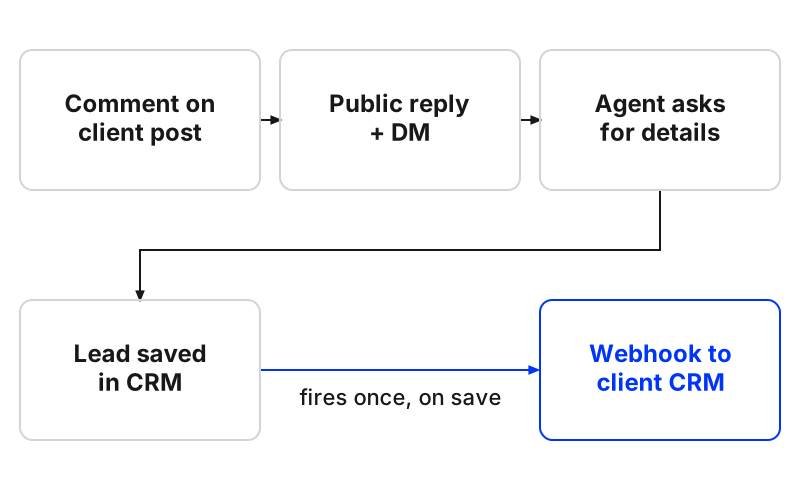
This is also how you stop client leads slipping through when staff miss comments. You stop relying on someone seeing the comment at all. The agent replies to every comment that matches the brief, opens the DM, and the lead lands in the CRM whether anyone was online or not.
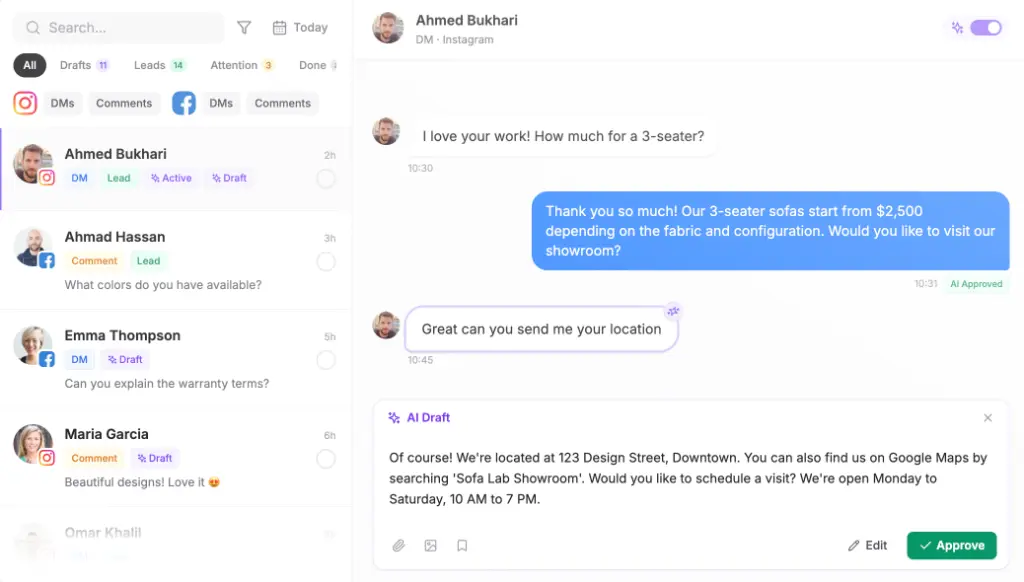
The same flow handles the repetitive DMs that eat your team’s day. Instead of typing the same price and availability answers across five client pages, the agent answers from each client’s own website, files, FAQs and past chats. When a conversation needs a person, the agent hands it over with its history, and when someone on the team replies, the agent steps back so the customer never gets two answers.
How do I set it up, step by step?
Send Instagram DM leads to a client's CRM with webhooks
- Check the client's Meta setupConfirm the client's Instagram profile is in a business portfolio in Meta Business Suite and that whoever connects it has full access to the profile.
- Connect the client's accountsSend the client a one-time Magic Link so they authorise their own Instagram account through Meta's official login.
- Brief the comment-to-DM automationDescribe the trigger, the DM and the follow-up in plain language, answer the agent's questions, and approve.
- List the details the agent collectsChoose the fields, such as name, phone and email, and ask for them after the agent's first reply.
- Rehearse with SimulationsRun the agent on the client's real past conversations before it answers anyone.
- Add the webhookPoint a webhook at the client's CRM endpoint for the lead-saved event, one endpoint per client.
- Map the fields and watch deliveriesMap each saved detail to a CRM field, then check the delivery log daily for a week and re-send anything that failed.
Step 1: Check the client’s Meta setup
Most broken setups fail before any tool is involved. Meta’s help centre says you need full access to the Instagram profile to turn on messaging in Meta Business Suite, and the profile has to be added to a business portfolio there. Ask the client to confirm both on your onboarding call, while they’re logged in.
Check who else can read the inbox while you’re there. People who help manage the client’s Facebook Page may be able to view and reply to Instagram messages, access is allowed by default, and it can be changed in Instagram settings or in Business Suite’s Settings. If the client’s own staff answer DMs in the Instagram app as well, agree now who owns which conversations.
Step 2: Connect the client’s accounts
Send the client a one-time Magic Link and let them authorise their own accounts. Maxbound is an approved Meta Tech Provider that connects only through each platform’s official APIs and login (OAuth), so it never asks for, sees or stores a social password. Nobody at your agency ends up holding a client’s Instagram password in a shared document.
Step 3: Brief the comment-to-DM automation
Brief it the way you’d brief a new hire, in Maxbound or from Claude, ChatGPT or Codex through the MCP server. Copy this and change the details:
When someone comments “price” on the spring promo reel, reply publicly that we’ve sent a DM. In the DM, send the price list and ask for their name and phone number. Save anyone who shares a phone number to the CRM tagged “Spring promo”. If they don’t reply, follow up once the next morning, then stop.
The agent asks what it still needs, such as who owns these leads or which reel counts, and builds the automation in that client’s workspace. Nothing goes live until someone at your agency approves it, and you can keep approval switched on for as long as you like.
Step 4: List the details the agent collects
Pick the fields the client’s sales team actually uses, not every field the CRM has. The agent asks for the fields you list at the start of the conversation, after its first reply or at the end, and saves the answers to the contact.
After the first reply is usually right for Instagram. Asking for a phone number before answering the question feels like a form; asking after a useful answer feels like service, and people are more willing to hand it over.
Step 5: Rehearse before it answers anyone
Run the agent through Simulations on the client’s real past conversations. You’ll see where it asks for a phone number too early, misses a price or fails to hand over a complaint. Fix the brief and run it again.
If the client wants a person to check every reply for the first weeks, switch on drafts. The agent writes each reply, and a person approves or edits it before it’s sent.
Step 6: Point a webhook at the client’s CRM
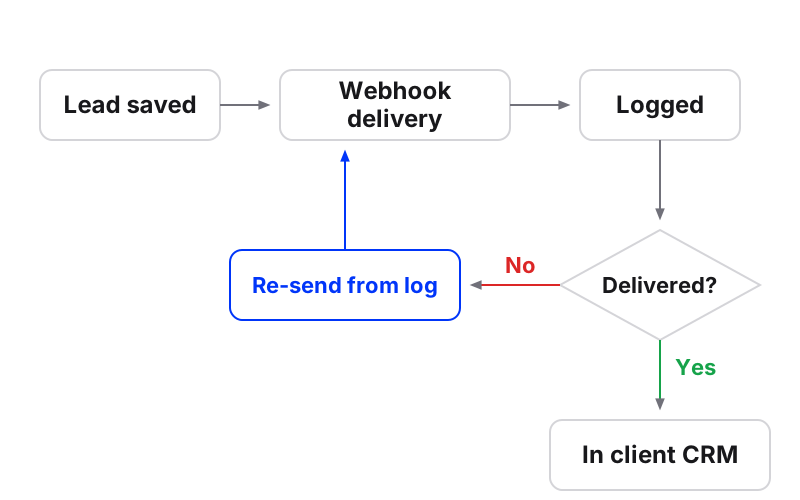
Use the Maxbound API and its webhooks to send events to your own systems. Webhooks fire the moment a lead is saved or a message arrives. For CRM sync, subscribe to the lead-saved event only; message-arrived is for things like alerting a salesperson, not for creating records.
Use one endpoint per client, or route by workspace on your side before anything touches a CRM. Mixing two clients’ leads in one pipeline is the fastest way to lose a client’s trust, and it’s hard to untangle after the fact.
Step 7: Map the fields and watch deliveries
Decide where each saved detail lands before the first lead arrives (the field map below is ready to copy). Then open the delivery log every day for the first week. Every webhook delivery is logged and can be re-sent, so if the client’s CRM was down for an hour, you find the failed deliveries and send them again.
Which field map should I copy?
The map below goes from a Maxbound contact to any CRM, whether the client uses HubSpot, Salesforce or something smaller. It’s an illustration: rename the middle column to the client’s real field names, and make any CRM field that is required match a detail the agent always collects, or the push will be rejected.
| Saved in Maxbound | Where it goes in the client’s CRM | Why it matters |
|---|---|---|
| Name, phone, email | Contact record | Sales can call back without opening Instagram |
| What they asked for | Deal or lead notes | Sales starts with context, not “how can I help?” |
| How close to buying | Lead stage or score | Hot leads get called first |
| Tags (e.g. “Spring promo”) | Campaign or source detail | Ties the lead to the post or ad that created it |
| Channel | Lead source | Separates Instagram, WhatsApp and Facebook leads |
| Workspace (client) | Used for routing, not stored | Keeps one client’s leads out of another’s pipeline |
Keep the full conversation in Maxbound rather than stuffing it into the CRM. Each contact there keeps a timeline of every message across channels plus the team’s notes, so the CRM record stays short and the history is one click away when sales needs it.
How do I trigger a CRM follow-up the moment a high-ticket lead replies to a story?
Story replies arrive in the same workspace as DMs and comments, so the setup is the same chain with a tighter brief. Brief the agent to answer story replies, qualify on the one or two questions that separate a serious buyer (budget, timing), and route real buyers to the team. Lead qualification sends the buyers to a person and keeps following up with the rest.
On the CRM side, have the lead-saved webhook create the contact and a call task for the owner straight away. Because the webhook fires the moment the lead is saved, the salesperson gets the task while the person is still in the chat, which is well inside the 24-hour window. If you want a heads-up even earlier, use the message-arrived event to ping the team, but keep record creation on lead-saved so you don’t get duplicates.
What Meta rules limit Instagram DM lead capture?
Meta’s rules limit when you can message a lead, how long the message can be and which conversations the API can read. Build follow-ups around them, not the other way round.
-
The 24-hour window. Most user actions open a 24-hour window for replies. A follow-up queued for day three on an organic comment won’t send.
-
Click-to-Direct ads. When someone sends their first message after clicking a Click-to-Direct ad, the window may last up to 7 days from that message. That’s the main reason to run conversation ads for leads you know need a few days to decide.
-
The Requests folder. Messages in the Requests folder that haven’t been active for 30 days aren’t returned in API calls, so old requests won’t sync into anything.
-
Message length. Message text sent through the API must be UTF-8 and 1,000 bytes or less. Keep price lists short, or split them across two messages.
-
No group chats. Group messaging isn’t supported by the Instagram API, so leads in group threads have to be handled by hand.
What are Meta’s rate limits, and which error codes mean you’ve hit them?
Meta caps how many calls an app can make. For the Graph API, the limit within a rolling one-hour window is 200 multiplied by the number of users, meaning the app’s unique daily active users. As an illustration of the formula, an app with 40 daily active users gets 200 × 40 = 8,000 calls in a rolling hour; bursts from a viral post spend that faster than you’d expect.
This matters most if your agency has built its own Instagram integration, or if your CRM-side scripts call Meta directly to look things up. When a call fails for rate limits, the error code tells you whose budget ran out:
| Error code | What Meta says it means | What to do |
|---|---|---|
| 4 | The app whose token is used has reached its rate limit | Stop calling, then check the X-App-Usage header before resuming |
| 17 | The user whose token is used has reached their rate limit | Stop calling with that token and spread the work out |
| 32 | The user or app on a Pages API request has reached its rate limit | Stop calling the Pages API and resume later |
The instruction Meta gives is blunt: when the limit is reached, stop making API calls, because hammering it extends the recovery time. Retrying in a tight loop is the most common way an integration turns a short pause into a long outage. To see trouble coming, check the X-App-Usage HTTP header, which shows how close the app is to its limit, and slow down before you hit it.
Keep the two failure types apart in your head. A Meta rate limit stops messages being read or sent; a CRM rejection stops a saved lead being delivered. With Maxbound, the second kind shows up in the webhook delivery log, where you can re-send once the CRM is fixed.
How do tokens and permissions work across many client accounts?
If your agency runs its own Meta app, token lifetimes are what quietly break client connections. The authorisation code Meta sends is valid for one hour, the short-lived token you swap it for is also valid for one hour, and long-lived tokens last 60 days and can be refreshed before they expire. Across 50 clients, that’s 50 expiry dates to track; put a refresh well before day 60, not on it.
Access level matters too. Standard Access is the default for every app and limits the data it can get, while Advanced Access requires both App Review and Business Verification. If you’re building in-house, plan for both before you promise a client anything.
With Maxbound, the client authorises their own accounts through Meta’s official login via the Magic Link, and your team’s access is handled inside Maxbound rather than by passing logins around. Every workspace has role-based permissions, and each teammate is given access only to the client workspaces they work on, with unlimited seats. Above 50 workspaces, the Enterprise plan adds custom AI workflows, a dedicated success manager and integration with the agency’s own CRM and tools.
On the Meta side, remember that access to the client’s Instagram messages can be removed at any time in Instagram settings. When a teammate leaves or a client parts ways with your agency, check both places: Maxbound workspace access and the client’s own Meta settings.
A launch checklist you can copy
Run this for every new client before you approve the automation:
- Instagram profile is in a business portfolio in Meta Business Suite, and the person connecting has full access to it.
- Agreed who else can read the inbox (Page managers have access by default) and who owns which conversations.
- Client authorised their accounts through the Magic Link; no password shared.
- Brief approved: trigger word, public reply, DM text under 1,000 bytes, one follow-up inside 24 hours.
- Fields to collect listed, asked after the agent’s first reply.
- Simulations run on real past conversations; brief fixed and re-run.
- Drafts switched on for the first weeks if the client wants to see replies first.
- Webhook on lead-saved only, one endpoint for this client.
- Field map filled in with the client’s real field names; required fields always collected.
- Delivery log checked daily for seven days; failed deliveries re-sent.
Once a client runs clean, clone the workspace as the starting point for the next one and change the brief, the knowledge and the endpoint.
How do WhatsApp leads get to the same CRM?
WhatsApp leads take the same path: the agent answers, collects the listed details, saves the contact, and the lead-saved webhook fires. Facebook Messenger, website chat and chat inside a client’s own iOS or Android app work the same way.
That means one webhook per client covers every channel. The channel field tells sales where the lead came from, and the contact’s timeline shows if the same person wrote on Instagram first and WhatsApp later. Duplicates can be merged in Maxbound’s CRM before they reach the client’s system.
How do you report leads per client?
Per-client reporting comes from the workspace itself. Maxbound’s analytics show reply and resolution times, qualified leads and what people asked about for each client and channel, with this month beside last month, so you don’t build a spreadsheet to answer “how many leads did Instagram bring?”
For the client, pick a date range and Maxbound produces a branded PDF report: what came in, what the agent handled and what it turned into. Set it as a scheduled automation and last month’s report is made every Monday and emailed to the client without anyone pulling numbers.
How does ManyChat compare for comment-to-DM and CRM sync?
Maxbound is priced per workspace, with every feature in every workspace, 100 AI credits a month each, extra credits priced in brackets, and a price per workspace that falls as you add clients. There’s a 7-day free trial and no free plan. API, webhooks, WhatsApp and the built-in CRM are in every workspace.
ManyChat is the tool most agencies try first for Instagram comment-to-DM, so compare it honestly. It applies pricing per account, not per user, and each account has its own plan, Active Contact limit, seats and billing. Plans step up by Active Contacts: Free up to 25, Essential up to 250 with lead capture tools, Pro up to 2,500 adding WhatsApp, Business up to 7,500 adding lead routing, and Advanced up to 25,000, the tier whose description lists API access.
The Free plan’s limits are tight for client work: one user and one Inbox seat, up to two channels, no WhatsApp, SMS or Email, a maximum of four live automations, and a “Powered by Manychat” message on first contact. On paid plans, an active contact is counted once per billing cycle however many messages you send them, you can cap extra contacts (including at zero), you can change plan in Billing and it starts right away, and if you go over and upgrade within the same cycle, ManyChat says it waives the overage fees already incurred.
| Maxbound | ManyChat | |
|---|---|---|
| How it’s priced | Per workspace, every feature in every one, 100 AI credits a month each | Per account, by Active Contact tier |
| Lowest entry | 7-day free trial, no free plan | Free plan, up to 25 Active Contacts |
| Every workspace | From Pro | |
| API and webhooks | Every workspace, with logged, re-sendable deliveries | API access listed at Advanced |
| Lead handling | Built-in CRM saves every lead from the chat with tags and stage | Lead capture tools from Essential, lead routing at Business |
| Seats | Unlimited seats, role-based permissions per workspace | Free plan has 1 user and 1 Inbox seat; seat limits per account |
A worked illustration of what per-account pricing means for an agency: ten clients that each expect between 251 and 2,500 Active Contacts a month would each need their own Pro account, because the limit sits on the account, not on your agency. There’s a fuller breakdown of ManyChat alternatives by job if you’re weighing more options.
Common mistakes, and when to skip the webhook
The same handful of mistakes break most DM-to-CRM setups:
- Firing on every message. Subscribe to lead-saved, not message-arrived, or the CRM fills with duplicates.
- One endpoint for every client. Leads cross between clients and someone untangles them by hand.
- Follow-ups outside the window. Anything scheduled past 24 hours on an organic conversation won’t send.
- Retrying through a rate limit. On error 4, 17 or 32, stop calling; retry loops make the pause longer.
- Letting tokens lapse. Self-built integrations with long-lived tokens need a refresh before 60 days.
- Missing Meta access. Without full access to the profile and a business portfolio, messages never appear downstream.
- Never cleaning records. Merge duplicates regularly, or the CRM becomes noise.
Skip the webhook when the client has no CRM of their own. The built-in CRM already saves every lead with its details, and the branded report covers what the client wants to see. Add the webhook when the client’s sales team lives in their own CRM and won’t log into anything else.
Maxbound also doesn’t suit everyone. It handles conversations on WhatsApp, Instagram, Facebook, website chat and in-app chat only, with no voice, SMS or Slack agent, so phone and text leads need their own route into the CRM. And if you only want a free tool for one small account, the lack of a free plan will rule it out.
If you’re an agency running Instagram and Meta ads for clients, the fit is a workspace per client where the agent answers every reply your ads create, saves the buyers and pushes them straight to that client’s CRM, with nothing live until your team approves it. ManyChat suits a single brand that stays within a low Active Contact tier and doesn’t need WhatsApp or the API. Set up one client this week using the checklist, run it for seven days, then clone the workspace for the next.