WhatsApp Booking Confirmations and Reminders
How to send WhatsApp booking confirmations and reminders that cut no-shows: what to send and when, the template rules Meta sets, and how to take the booking
A WhatsApp booking confirmation should arrive the moment the booking is made, say exactly what was booked, and make changing it easy. A reminder should arrive a day before, and for short-notice bookings a couple of hours before, with a one-tap way to confirm or reschedule, so a customer who can’t come tells you instead of simply not turning up.
There are two rules to work within. Messages sent more than 24 hours after the customer last wrote must use a template Meta has approved. And customers must have agreed to hear from the business on WhatsApp. Get those right and confirmations and reminders are some of the most useful messages a business sends.
What a good confirmation looks like
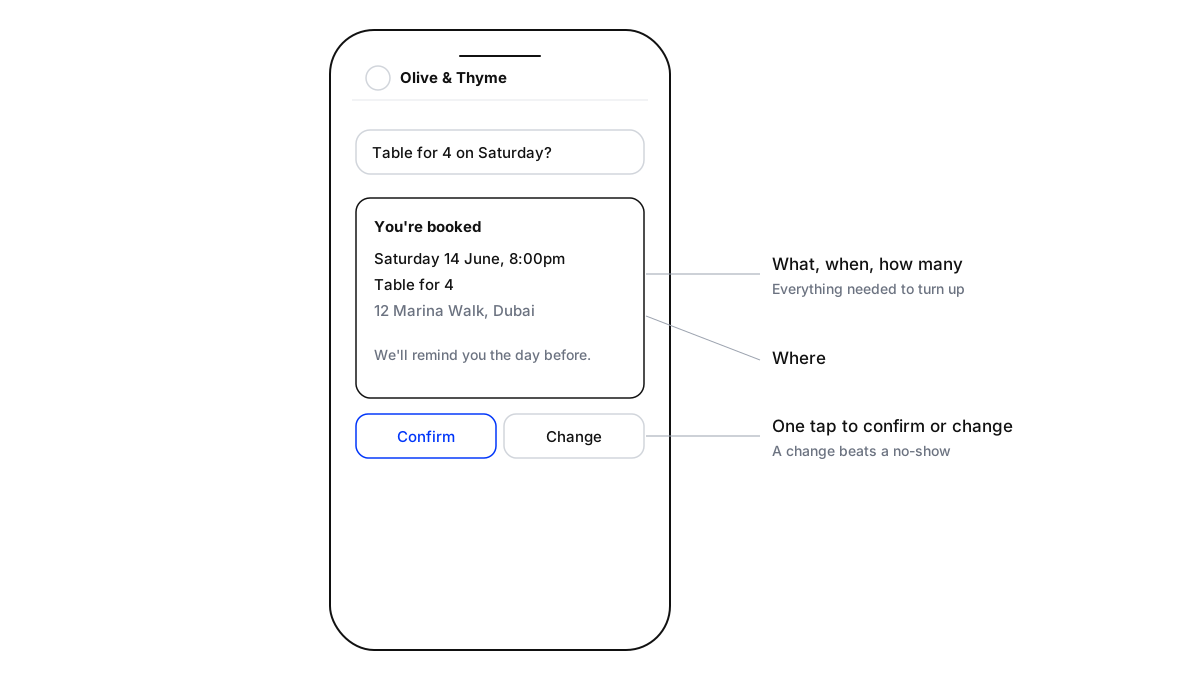
Keep it to what the customer needs to turn up: the date, the time, what they booked, how many people, and where. Then one clear way to change it. Quick-reply buttons (“Confirm” and “Change”) get answered more easily than “reply 1 or 2”, and they show the business which bookings are solid.
Leave promotions out. A confirmation is a service message, and Meta treats it that way only while it stays one.
When to send each message
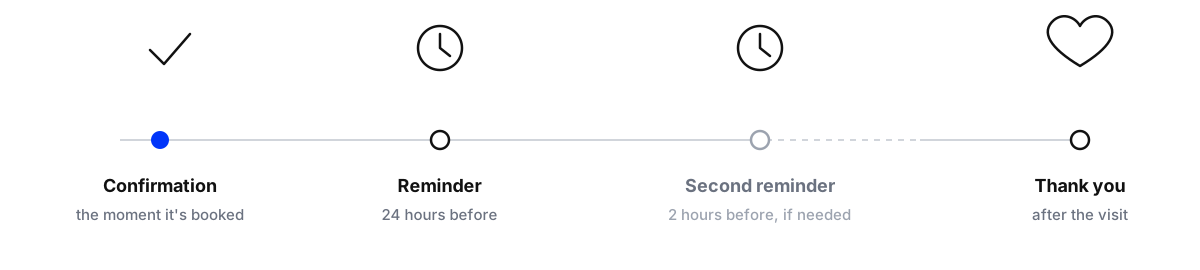
- Confirmation, straight away.
- Reminder, 24 hours before, with Confirm and Change buttons.
- Second reminder, about 2 hours before, only for bookings where a no-show is costly or the booking was made weeks ago.
- After the visit, a short thank-you, and if the client wants it, one feedback question.
More than that starts to feel like marketing, and people mute chats that feel like marketing.
Wording you can copy
Templates hold placeholders, written as numbers in double braces, that the booking system fills in for each customer. Two that work:
Confirmation: Hi
{{1}}, you’re booked at{{2}}on{{3}}at{{4}}, for{{5}}. The address is{{6}}. Tap Change if you need a different time.
Reminder: Hi
{{1}}, a reminder of your booking at{{2}}tomorrow,{{3}}at{{4}}. Tap Confirm if you’re coming, or Change if plans have moved.
Use the customer’s name, the business’s name and nothing else that could read as a sales message. Write it the way the business talks: a clinic and a beach club shouldn’t sound the same.
What to do with the replies
Reminders bring replies, and most of them need an answer within minutes, not tomorrow:
- “Can we move it to 9?” Offer the nearest free times and confirm the change in the same chat.
- “Running 15 minutes late.” Say whether the table or slot is held, and for how long.
- “We can’t make it.” Thank them, cancel the booking, and offer another date once.
- A question about the booking, such as parking or dietary needs. Answer from the business’s own information.
A reply to a reminder reopens the 24-hour window, so these answers are ordinary messages, not templates.
The rules Meta sets
The customer service window is the part most teams trip over. When a customer messages a business on WhatsApp, a 24-hour window opens. Inside it the business can send any message. Outside it, it can only send a message template that Meta has approved.
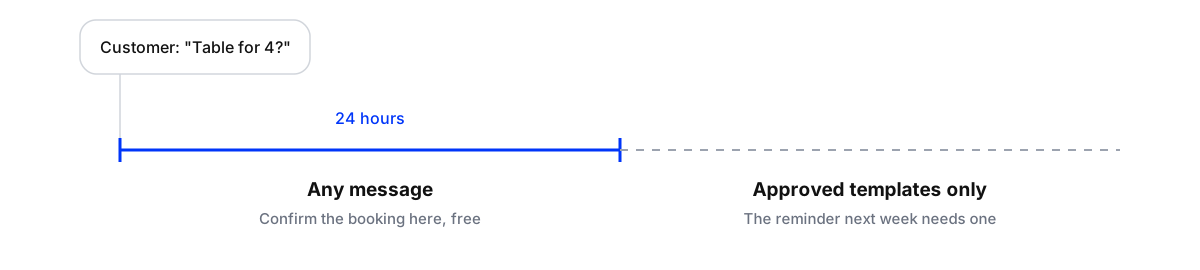
So a booking made in a chat at 3pm can be confirmed in the chat with a normal message. A reminder the next week falls outside the window and needs a template.
Templates come in three categories: marketing, utility and authentication. Booking confirmations and reminders belong in utility, which Meta reserves for messages triggered by something the customer did and specific to their booking, order or account, without promotion. Add an offer to a reminder and it becomes marketing.
Since 1 July 2025 Meta charges per delivered template message, and utility templates delivered inside an open customer service window are free. That makes the confirmation, sent while the customer is still in the chat, the cheapest message in the flow.
Finally, opt-in. Meta requires the business to have the customer’s agreement to receive WhatsApp messages, and to state clearly that they are opting in and to which business. A tick box at booking (“Send my confirmation and reminders on WhatsApp”) covers it.
Take the booking in the chat first
Many bookings start as a question: “Do you have a table for six on Saturday?” in a DM, a comment under a post or a WhatsApp message. If that question waits until morning, the confirmation never happens because the booking never happens.
An AI agent can take the request when it arrives: check what the client allows, ask for the date, time and group size, and save the request. The booking system then confirms it, or a person does at the start of the day. Comments that ask about availability can be moved into a private message first, so details aren’t shared in public (comment to DM to CRM).
Set up WhatsApp booking confirmations and reminders
- Add the opt-inAt booking, ask customers to agree to WhatsApp confirmations and reminders from the business by name.
- Write two utility templatesA confirmation and a reminder, each with the date, time, what was booked and Confirm and Change buttons. No offers.
- Get them approvedSubmit them through the WhatsApp Business Platform or your provider, and check they were filed as utility.
- Connect the booking systemHave it send the confirmation when a booking is made and the reminder 24 hours before.
- Route the repliesSend replies, especially Change, to an inbox where an agent or a person answers within minutes.
- Measure no-showsCompare the no-show rate for a month before and after, and adjust the reminder timing.
Where Maxbound fits
Maxbound’s AI agents answer booking questions on WhatsApp, Instagram, Facebook, website chat and in-app chat, take the details and save them to the CRM, and hand anything unusual to a person. Replies to confirmations and reminders land in the same inbox, so a “can we move it to 8?” gets answered rather than waiting. The booking system or the client’s own tools send the scheduled reminders, and can pass booking details to Maxbound through its API. Agencies running this for several clients keep each in its own workspace; for choosing tools, see social media customer service software for agencies, and for replies a person approves first, setting up a human-in-the-loop workflow. On Instagram, see Instagram DM automation.